
# SafeCopy
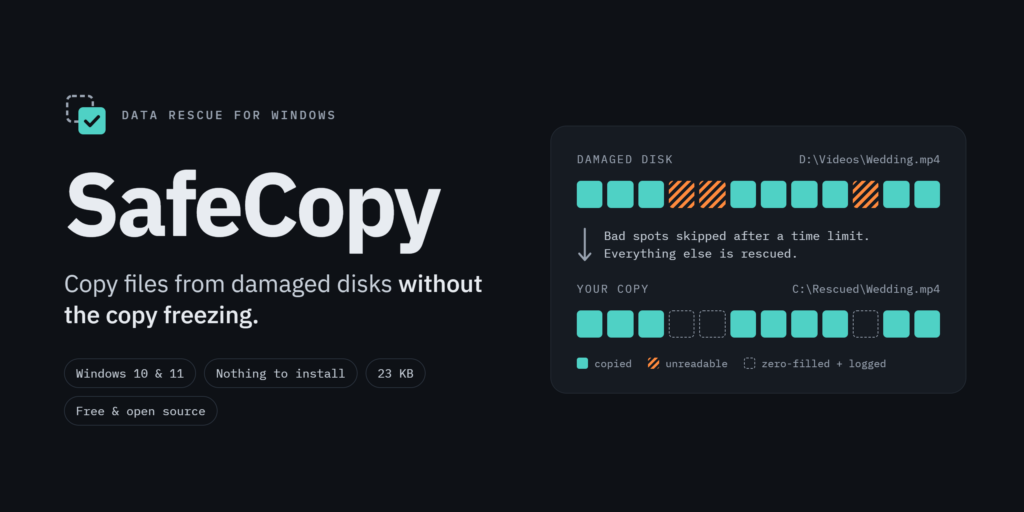
**Copy files and folders from damaged disks without the copy freezing.**
SafeCopy is a small, free rescue tool for Windows. Use it when Windows Explorer gets stuck, shows “Cannot read from the source file or disk”, or gives up halfway through copying from a failing hard drive, scratched CD/DVD, faulty USB stick or bad memory card.
Explorer stops the whole copy as soon as it hits one unreadable spot, and it can sit frozen for minutes while the disk struggles. SafeCopy does the opposite: it copies everything it can read, skips what it can’t, keeps moving, and tells you exactly what was lost.
—
## Contents of this package
| File | What it is |
|—|—|
| `SafeCopy.exe` | The Windows program. Double-click to run. |
| `README.md` | This file. |
—
## What it does
– **Copies single files, whole folders, or an entire drive** (e.g. `D:\`), keeping the folder structure.
– **Never freezes on a bad spot.** Every read from the disk has a time limit (10 seconds by default). If the disk stops responding, SafeCopy skips that area and carries on.
– **Rescues as much as possible.** When part of a file gives a read error, SafeCopy zooms in and retries that area in tiny 4 KB pieces, so only the bytes that are truly unreadable are lost.
– **Always produces a full-size copy.** Unreadable parts are filled with zeros, so the copy is the same size as the original and most files (videos, photos, music) will still open.
– **Reports the damage.** Any file with unreadable parts gets a `filename.damaged.txt` report next to the copy, listing exactly which bytes could not be read.
– **Keeps going through folders.** A file that can’t be opened at all, or a sub-folder that can’t be listed, is logged and skipped. The rest of the copy continues.
– **Keeps the original “date modified”** on each copied file where possible.
– **Never changes the source.** SafeCopy only reads from the damaged disk; it never writes to it.
—
## Requirements
– Windows 10 or Windows 11 (also works on Windows 8 / 8.1).
– Nothing to install. SafeCopy uses the .NET Framework 4.5+ that is already part of Windows.
– Size: about 23 KB.
—
## How to use
1. **Double-click `SafeCopy.exe`.**
2. **Choose what to copy:** click **File…** for one file, or **Folder…** for a folder or a whole drive. You can also drag a file or folder from Explorer onto the SafeCopy window.
3. **Choose where to put the copy:** click **Browse…** and pick a folder on a *healthy* disk.
4. *(Optional)* Change **”Skip a bad spot after … seconds”**. Lower is faster on very damaged disks; higher gives a struggling disk more time to read.
5. Click **Start copy**.
The progress bar shows the current file, and the log lists every file as it finishes:
“`
OK D:\Photos\IMG_0001.jpg (3.2 MB, 0.1s)
DAMAGED D:\Photos\Wedding.mp4 – 512.0 KB unreadable of 1.4 GB (see .damaged.txt)
FAILED D:\Photos\IMG_0099.jpg (no response from disk)
SKIPPED FOLDER D:\Photos\Old (The file or directory is corrupted and unreadable)
Done in 312s: 845 copied fine, 3 copied with damage, 1 failed. 12.4 GB copied, 1.5 MB unreadable.
“`
– **OK** – copied perfectly.
– **DAMAGED** – copied, but some parts could not be read and were filled with zeros. See the `.damaged.txt` report.
– **FAILED** – the file could not be opened at all.
– **SKIPPED FOLDER** – the folder’s contents could not be listed.
Click **Stop** at any time; it stops immediately, even if the disk is stuck. Files already copied are kept.
### Where the copy goes
– Copying a **file** `D:\report.docx` to `C:\Rescued` creates `C:\Rescued\report.docx`.
– Copying a **folder** `D:\Photos` to `C:\Rescued` creates `C:\Rescued\Photos\…`.
– Copying a **whole drive** `D:\` to `C:\Rescued` creates `C:\Rescued\D-drive\…`.
If a file with the same name already exists at the destination, it is **replaced**.
### Starting from the command line or a shortcut
You can pre-fill the two boxes by passing paths:
“`
SafeCopy.exe “D:\Photos” “C:\Rescued”
“`
The window still opens so you can check and click **Start copy**.
—
## The damage report
For each damaged file, SafeCopy writes `<filename>.damaged.txt` next to the copy, for example:
“`
Source: D:\Videos\Wedding.mp4
Size: 1503238553 bytes
Unreadable: 524288 bytes (0.0349%), filled with zeros in the copy
Offset Length
734003200 4096
734011392 520192
“`
**Offset** is where the unreadable part starts (in bytes from the beginning of the file) and **Length** is how many bytes could not be read. If a later run copies the file perfectly, the old report is deleted automatically.
—
## How it works (technical)
1. **Chunked reading.** Each file is read in 1 MB chunks, and every chunk is written to the copy at the same position.
2. **Time-limited reads.** Each read runs on its own background thread. If it doesn’t finish within the time limit, SafeCopy abandons that thread and its file handle (a stuck read can’t be cancelled in Windows, but it can be left behind), opens a fresh handle, fills that 1 MB with zeros and moves on to the next chunk. Hung areas are skipped as a whole rather than retried, because each retry would cost another full timeout.
3. **Narrowing down errors.** If a 1 MB chunk returns a read error (like a CRC error), SafeCopy re-reads that chunk in 4 KB pieces (the size of a typical disk sector cluster). Good pieces are kept; only bad 4 KB pieces become zeros. Each failing read is retried once.
4. **Short reads.** If the disk returns fewer bytes than expected, the missing bytes are zero-filled and recorded as damaged, so the copy always matches the original’s size and every byte stays at its correct position.
5. **Safe folder listing.** Listing a folder is time-limited too, so a corrupted folder can’t hang the copy. Symbolic links and junctions are skipped to avoid loops.
6. **Clean exit.** Closing the window ends the program immediately, even if threads are still stuck waiting on the disk.
—
## Tips for rescuing data from a failing disk
– **Copy your most important files first.** A failing disk can get worse every time it’s used. Copy one key folder at a time rather than the whole drive at once.
– **Always copy to a different, healthy disk**, never back onto the damaged one.
– **Use a lower timeout (3–5 seconds) on badly damaged disks** to get through them faster. Run again later with a higher timeout on just the damaged files if you want to try to recover a little more.
– **Don’t keep re-running on a clicking or grinding drive.** That is physical damage, and each attempt may make it worse. For irreplaceable data, a professional data-recovery service is the safest choice.
—
## Limitations
– **Zeros are not the original data.** A damaged file will still have holes. Videos, music and photos usually still play or open, with a glitch where the damage was. Documents (Word, Excel, PDF), databases and ZIP/RAR archives are more sensitive and may need their own repair tool afterwards.
– **It copies files, not the disk.** SafeCopy can’t recover deleted files or rebuild a drive whose file system is too damaged for Windows to open. For those cases, use a dedicated data-recovery tool.
– **Stuck reads keep running in the background.** Windows can’t cancel a read that is stuck in the disk driver, so each abandoned read stays waiting until the disk answers or the program closes. On extremely damaged disks this can use a little extra memory; it is all released when SafeCopy closes.
– **Very long paths.** Paths longer than about 260 characters may fail with a “path too long” message. Copying to a short destination such as `C:\R` helps.
– **Unsigned program.** The first time you run it, Windows SmartScreen may show “Windows protected your PC”. Click **More info → Run anyway**. You can read and rebuild the source yourself (below) if you prefer.
—
## Building from source
`SafeCopy.cs` is a single file with no dependencies. It can be built with the C# compiler that is already included in Windows, with nothing to download.
Open **Command Prompt** in the folder containing `SafeCopy.cs` and run:
“`
C:\Windows\Microsoft.NET\Framework64\v4.0.30319\csc.exe /target:winexe /optimize+ /r:System.Windows.Forms.dll /r:System.Drawing.dll /out:SafeCopy.exe SafeCopy.cs
“`
(On 32-bit Windows, use `Framework` instead of `Framework64`.)
It also builds with Visual Studio, or on Linux/Mac with Mono:
“`
mcs -target:winexe -optimize+ -r:System.Windows.Forms -r:System.Drawing -sdk:4.5 -out:SafeCopy.exe SafeCopy.cs
“`
### Source code overview
| Part of `SafeCopy.cs` | Job |
|—|—|
| `Timed.Run` | Runs any disk operation on a background thread and gives up after the time limit. |
| `Reader` | Reads a byte range from a file with a time limit; replaces its file handle if a read gets stuck. |
| `Copier.CopyFile` | Copies one file chunk by chunk, zooms in on errors, zero-fills bad areas, writes the `.damaged.txt` report. |
| `Copier.WalkFiles` | Lists all files in a folder tree without hanging on unreadable folders. |
| `Copier.Run` | Works out source and destination paths, copies each file and writes the log and summary. |
| `MainForm` | The window: path boxes, drag-and-drop, timeout setting, progress bar, log, Start and Stop. |
—
## Python version (`safecopy.py`)
Identical copying behaviour, for computers with Python 3 (no extra packages needed).
– **Window:** double-click `safecopy.py` (on Windows, rename it to `safecopy.pyw` to hide the console window).
– **Command line:**
“`
python safecopy.py SOURCE DESTINATION [–timeout 10] [–retries 1]
“`
`–timeout` is the number of seconds before a stuck spot is skipped; `–retries` is how many extra times a failing read is tried.
The command-line version exits with code `0` when everything copied (even with damage), `1` if any file failed completely, and `2` if stopped with Ctrl+C.
—
## Version
SafeCopy 1.0 – October 2026