How to Check if Your Email or Passwords Were Leaked Online
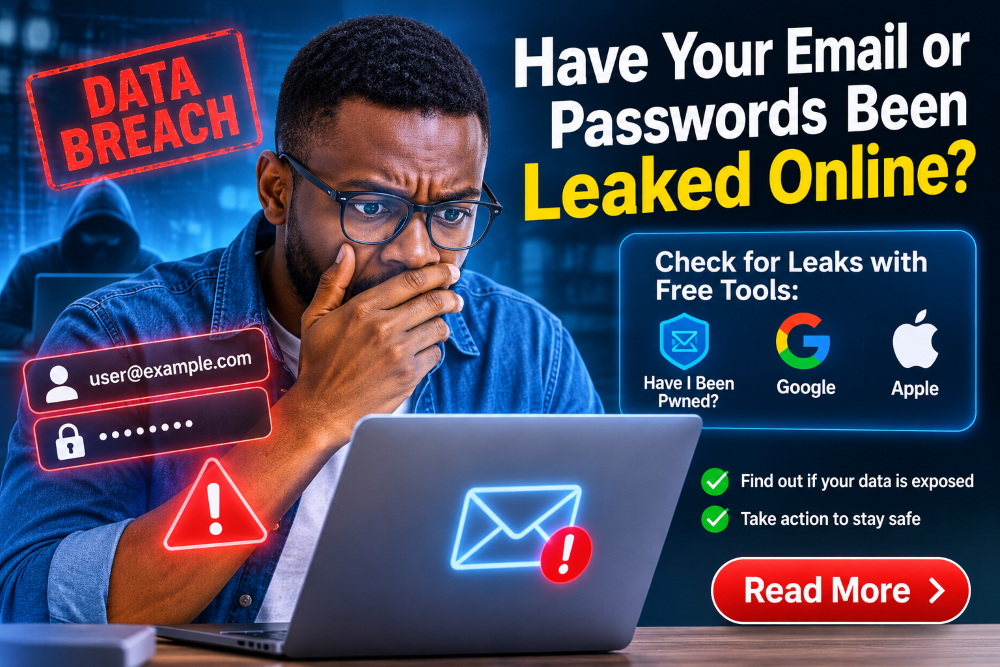
Stolen logins circulate by the millions. Here is how to check your email and saved passwords with free tools from Have I Been Pwned, Google and Apple, and what to do if you find a match.

In this article
- Key takeaways
- Why breach checks matter more in 2026
- Step 1: Check your email address on Have I Been Pwned
- Turn on alerts for future leaks
- Step 2: Check whether a specific password has leaked
- Step 3: Run Google Password Checkup
- On a computer using Chrome
- In any other browser
- Step 4: Check saved passwords on iPhone, iPad and Mac
- Step 5: What to do if you find a match
- Extra steps for small businesses
- Quick checklist
- Frequently asked questions
- Will these sites show me my old password?
- My email is in a breach but I changed that password years ago. Am I safe?
- How often should I check?
- Sources
Every few weeks another collection of stolen logins surfaces online. In June 2026 alone, the breach-notification service Have I Been Pwned (HIBP) added a single batch of “stealer logs” covering about 56.3 million email addresses and 124 million unique passwords. If you run a small business, manage staff accounts or simply use the same few passwords everywhere, there is a real chance one of your logins is already in circulation. This guide shows you, step by step, how to check, and what to do if you find a match.
Key takeaways
- Free tools from Have I Been Pwned, Google and Apple can tell you whether your email address or saved passwords have appeared in known leaks.
- None of these tools show you the leaked password itself; they only tell you that exposure happened.
- Any password flagged as exposed should be retired immediately, on every account where you used it.
- Turning on two-step verification is the single best follow-up step.
- Businesses can monitor all addresses on their own domain after proving they control it.
Why breach checks matter more in 2026
Older data breaches usually came from a single hacked website. Today a growing share comes from infostealer malware: malicious programs, often hidden in cracked software, fake updates or dodgy browser extensions, that quietly copy the usernames and passwords saved on an infected computer, along with the sites they belong to. HIBP describes the June 2026 batch as stealer logs gathered from several sources, which means the passwords were taken from people’s own devices rather than from one company’s database.
The practical effect is simple. Criminals load these lists into automated tools and try the same email and password combination on banking apps, email, social media and business software. If you reuse passwords, one leak can open many doors.
Step 1: Check your email address on Have I Been Pwned
- Open a browser and go to haveibeenpwned.com. Type the address carefully; scammers create look-alike sites.
- Enter one email address in the search box and select Check.
- Read the results. Each listed breach shows the date, the service involved and the types of data exposed, such as email addresses, passwords or phone numbers.
- Repeat for every address you use, including old personal addresses and shared business inboxes such as info@ or accounts@.
HIBP says searches are not logged, and it never displays the leaked passwords. Some breaches are marked sensitive and do not appear in public searches; to see those, you must verify that you own the address and sign in to the HIBP dashboard, where all breaches are listed under Breaches in the Personal section.
Turn on alerts for future leaks
- On the HIBP site, open the Notify me option.
- Enter your email address and confirm the verification message, which comes from noreply@haveibeenpwned.com.
- You will then get an email if your address appears in a newly loaded breach, including stealer log data.
Step 2: Check whether a specific password has leaked
HIBP also runs Pwned Passwords, which tells you whether a password has appeared in any breach and how often. The site says passwords are hashed and anonymised before the check, and it does not record who a password belonged to. Even so, the safest habit is to use the checks built into your password manager, covered next, rather than typing live passwords into any website. If a password is found, HIBP’s advice is clear: stop using it.
Step 3: Run Google Password Checkup
If you save passwords in Chrome or your Google Account, Google can scan them for you.
On a computer using Chrome
- Open Chrome and select More (the three-dot icon at the top right).
- Choose Passwords and autofill, then Google Password Manager.
- Select Checkup on the left.
In any other browser
- Go to passwords.google.com and sign in if asked.
- Select Go to Password Checkup, then Check passwords.
The report groups results into three types: compromised passwords that have been published online, reused passwords that appear on more than one account, and weak passwords that are easy to guess. Google recommends changing compromised ones as soon as possible.
Step 4: Check saved passwords on iPhone, iPad and Mac
Apple devices also warn you when a saved password has appeared in a data leak. On recent versions of iOS and macOS, open the Passwords app and look at its security recommendations; on older versions the same list sits under Settings > Passwords on iPhone, or under the Passwords section of System Settings or Safari settings on a Mac.
- Review the High Priority Recommendations first. These include passwords that Apple says have appeared in a data leak.
- Select an entry and choose Change Password on Website to go straight to that site’s password page.
- Let your device generate a strong replacement and save it when prompted.
- Work through the remaining recommendations, such as reused or commonly used passwords.
Make sure the leak-detection option (labelled along the lines of Detect Leaked Passwords) is switched on so you keep getting these warnings.
Step 5: What to do if you find a match
- Change the password on the affected account, then on every other account where you used the same or a similar password.
- Turn on two-step verification wherever it is offered, starting with email, banking and business admin accounts. HIBP recommends this for everyone in the June 2026 stealer logs.
- Prioritise your email account. Whoever controls your inbox can reset most of your other passwords.
- Scan the device. If your address appears in stealer logs, assume a computer you used may have been infected. Run a full antivirus scan, remove software from unofficial sources and update the operating system.
- Watch for follow-up scams. Leaked details often fuel convincing phishing messages. Be wary of unexpected “security alerts” asking you to log in through a link.
Extra steps for small businesses
HIBP offers a domain search that lists every breached address on your company domain, but only after you prove you control the domain. Larger domains usually need a paid subscription. Once set up, it gives you an early warning when staff accounts leak, so you can force resets before attackers try them. Combine this with a company password manager and mandatory two-step verification for email and cloud admin accounts.
Quick checklist
- Searched every email address you use on haveibeenpwned.com
- Signed up for Notify me alerts
- Ran Google Password Checkup or Apple’s security recommendations
- Changed every compromised or reused password
- Enabled two-step verification on email, banking and admin accounts
- Scanned and updated any device that may be infected
Frequently asked questions
Will these sites show me my old password?
No. HIBP does not store or send exposed passwords, and Google and Apple only flag that a saved password has been exposed.
My email is in a breach but I changed that password years ago. Am I safe?
Mostly, as long as you never reused the old password elsewhere. Your email address can still be targeted by phishing, so stay alert.
How often should I check?
Turn on HIBP alerts and leave leak detection switched on in your password manager, then review the reports every few months.
Sources
Was this article helpful?

adminVerified expert
Cybersecurity Analyst — 20 years experience
Federal Capital Territory (Abuja)
Credentials: MCPN, MNCS, IAENG | System Analyst · Web Developer · CEH · CC · CDST
Got expertise to share? Write for us →