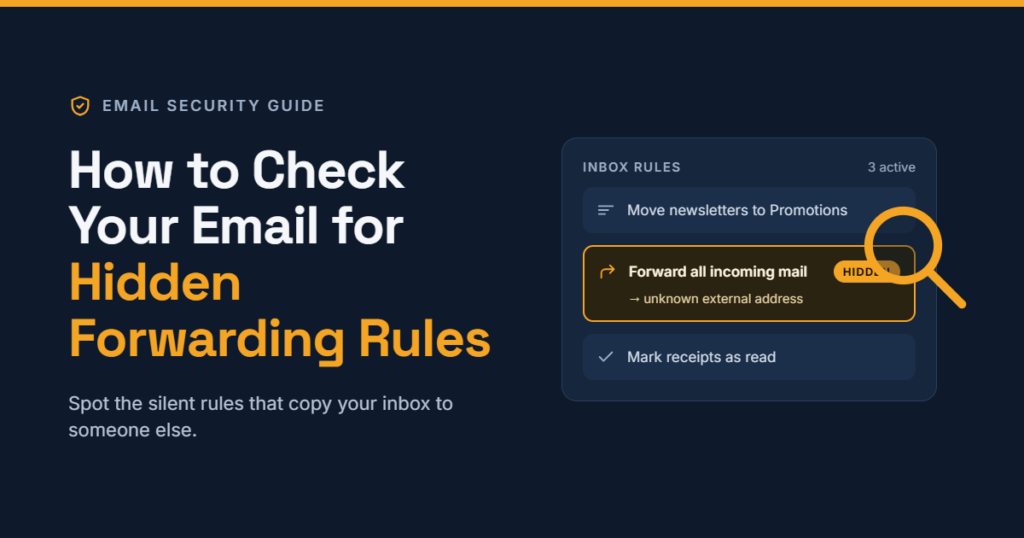
How to Check Your Email for Hidden Forwarding Rules
Hackers often set up hidden forwarding or inbox rules that survive a password change. This step-by-step guide shows how to find and remove them in Gmail, Outlook and hosting webmail.

In this article
When criminals break into an email account, one of the things they can do is quietly set up forwarding or a hidden rule. Even after you change your password, a copy of every message, including invoices and password-reset emails, can keep flowing to them. This step-by-step guide shows small business owners and everyday users how to check Gmail, Outlook and web-hosting mailboxes for forwarding they did not create, and what to do if they find one.
Key takeaways
- Changing your password does not remove forwarding addresses, filters or rules an attacker created.
- In Gmail, check the Forwarding and POP/IMAP, Filters and Blocked Addresses and Accounts and Import tabs.
- In new Outlook for Windows, check Settings > Mail > Forwarding and Settings > Mail > Rules.
- Web host DreamHost’s October breach advice told customers to review webmail forwarding rules and filters, a good habit for every business mailbox.
Why this matters right now
Hosting provider DreamHost disclosed in late October that an attacker had broken into its web-based File Manager and reached some webmail systems, obtaining login details for a limited number of webmail users. Among its advice to affected customers was to check webmail forwarding rules and filters for anything they did not create. The same advice applies after any phishing incident, suspicious login alert or password leak. A hidden rule is a useful tool in invoice and payment fraud, because it lets criminals watch conversations and step in at the moment money changes hands.
What you need before you start
- Access to the mailbox in a web browser on a computer, since some settings are easier to find there than in phone apps.
- About 10 minutes per mailbox.
- A list of any forwarding you set up on purpose, such as sending a shared enquiries address to a staff member.
Step by step: checking Gmail
Google’s Gmail security tips list the settings to review. In Gmail on the web:
- Click the Settings gear, then See all settings.
- Open the Forwarding and POP/IMAP tab. Confirm your mail is not being forwarded to an address you do not recognise, and that your POP and IMAP settings are what you expect. If you do not use forwarding, choose Disable forwarding and save.
- Open the Filters and Blocked Addresses tab. Look for any filter with a “Forward to” action pointing to an unknown address, and any filter set to “Delete it” that you did not create. A delete filter can hide bank alerts or replies you would otherwise notice.
- Open the Accounts and Import tab. Under Send mail as and Check mail from other accounts, confirm every address belongs to you. Under Grant access to your account, make sure no unknown person has been given access.
- Open the General tab and check your signature and vacation responder for changes.
- Finally, run Google’s Security Checkup to review recovery options, 2-Step Verification and account permissions.
Step by step: checking new Outlook for Windows
- Select Settings (the gear icon), then Mail, then Forwarding. If Enable forwarding is switched on and you did not set it, turn it off and save.
- Go to Settings > Mail > Rules. Read each rule carefully. Watch for rules that forward or redirect messages, move them to folders you rarely open, mark them as read, or delete them.
- To remove a suspicious rule, select More actions (the three dots) next to it, then Delete rule. Microsoft notes you can also use the toggle beside a rule to switch it off without deleting it, which is handy if you want to keep it as evidence while you investigate.
Classic Outlook on Windows
In the classic desktop app, rules are under Home > Rules > Manage Rules & Alerts, on the Email Rules tab. Check each account listed under Apply changes to this folder, because each mailbox has its own rules.
Step by step: hosting webmail and control-panel mailboxes
Many small businesses use email that comes with their web hosting, accessed through webmail or a hosting control panel. Menus differ between providers, but the checks are the same:
- Sign in to your hosting control panel and look for sections named Forwarders, Email routing or similar. Remove any forwarder you did not create.
- Sign in to webmail, open its settings and look for Filters, Rules or Forwarding. Remove unfamiliar entries.
- Check for auto-replies you did not set.
- If you use an email app such as Outlook or Thunderbird with this mailbox, update the saved password there after changing it, as DreamHost advised its customers.
If you find something suspicious
- Take screenshots of the rule or forwarding address before removing it.
- Remove the forwarding address, filter or rule.
- Change the password to a strong, unique one, and change it anywhere else you reused it.
- Turn on two-step verification if it is not already on.
- Sign out other sessions from your account security settings.
- Warn your contacts, especially customers and suppliers you exchange invoices with, and tell them to confirm any change in bank details by phone.
- Check your sent and deleted folders for messages you did not send.
- For a business mailbox, tell your IT provider, and if customer data may have been exposed, seek advice on your obligations under the Nigeria Data Protection Act.
Troubleshooting
- I cannot find the Rules option in new Outlook for my Gmail or Yahoo account. Microsoft says new Outlook does not support rules for third-party accounts, so check those mailboxes in their own web settings.
- A rule keeps coming back. Someone may still have access. Change the password again, sign out all sessions and check for unknown apps or people with access.
- Staff use a shared mailbox. Ask the account administrator to review it, since shared mailboxes can have rules too.
Monthly checklist
- Forwarding settings reviewed on every business mailbox.
- Filters and rules reviewed; unknown ones removed.
- “Send mail as” and account access lists checked.
- Two-step verification confirmed on.
- Recovery phone number and email up to date.
Sources
- Google: Gmail security tips
- Microsoft: Set up rules in Outlook
- Microsoft: Turn on automatic forwarding in Outlook
- DreamHost: October security incident
Featured image: Photo: “Free woman’s hands typing laptop” by unknown, CC CC0 1.0, via Openverse — source
Was this article helpful?

adminVerified expert
Cybersecurity Analyst — 20 years experience
Federal Capital Territory (Abuja)
Credentials: MCPN, MNCS, IAENG | System Analyst · Web Developer · CEH · CC · CDST
Got expertise to share? Write for us →