How to See Which Devices Are Signed In to Your Accounts and Remove Them
Old phones, shared PCs and hijacked sessions can stay signed in for months. This step-by-step guide shows how to review and remove devices on Google, Microsoft, Apple and WhatsApp.

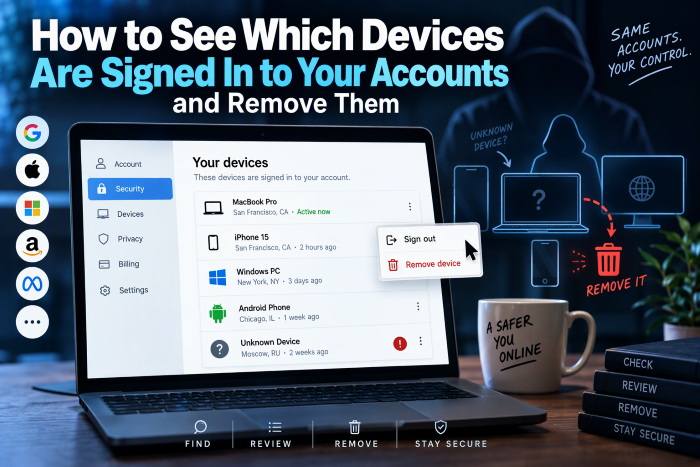
In this article
- Why this check matters now
- Before you start
- Step 1: Google account (Gmail, YouTube, Android)
- What looks suspicious
- Step 2: Microsoft account (Outlook, Office, Windows)
- Step 3: Apple Account (iPhone, iPad, Mac)
- On iPhone or iPad
- On a Mac
- On the web
- Step 4: WhatsApp linked devices
- Step 5: Your banking and payment apps
- Troubleshooting
- Quick checklist
- Sources
Every time you sign in on a new phone, laptop or browser, your account remembers it. Over months, that list fills up with old devices, office computers, a cyber café PC you used once, and sometimes a device that should never be there at all. Criminals who steal session cookies or trick you into approving a new device rely on you never looking. This guide shows small business owners and everyday users how to review signed-in devices on Google, Microsoft, Apple and WhatsApp, and remove anything you do not recognise. Set aside 15 minutes.
Why this check matters now
- Stolen sessions skip your password. Information-stealing malware grabs browser session cookies so attackers can stay signed in without knowing your password or passing two-step verification. Companies such as Vercel are now rolling out device-bound sessions precisely because this attack is so common.
- Device-link scams are rising. Fraudsters increasingly trick people into approving a new device on their accounts, for example through fake promotions that ask for a selfie.
- Old devices are loose ends. A sold phone, a former employee’s laptop or a shared office PC may still be signed in.

Before you start
- Have your own phone and computer nearby, signed in, so you can recognise them on each list.
- Make sure you know your passwords and have two-step verification working, because you may sign yourself out of an old device by mistake.
- Do this on a device you trust, not a shared or public computer.
Step 1: Google account (Gmail, YouTube, Android)
- Go to myaccount.google.com and sign in.
- Open Security & sign-in.
- In the Your devices panel, select Manage all devices.
- Select each device or session to see details such as location, browser and last activity.
- For anything you do not recognise or no longer use, select it and choose Sign out. If several sessions share the same device name, sign out of all of them.
What looks suspicious
Google advises watching for a device you do not recognise, a location you were not in, a date or time you do not remember, or a browser you do not normally use. Note that locations can be approximate, and a phone you recently factory reset may still appear. If something is clearly wrong, change your Google password straight away.
Step 2: Microsoft account (Outlook, Office, Windows)
- Sign in to your Microsoft account security dashboard and open Advanced security options.
- Scroll down to Sign out everywhere and select Sign out.
This signs your account out of browsers, apps and other places it is used. Microsoft says it can take up to 24 hours to take full effect, and Xbox consoles must be signed out separately. If you suspect someone else has access, change your password as well, since signing out alone does not change it. For work Microsoft 365 accounts, ask your administrator, who can revoke sessions centrally.
Step 3: Apple Account (iPhone, iPad, Mac)
On iPhone or iPad
- Open Settings and tap your name.
- Scroll down to the list of devices and tap one to see its details.
- Tap Remove from Account and confirm for any device you do not recognise.
On a Mac
- Choose the Apple menu, then System Settings, and click your name.
- Scroll to the device list, click a device, then click Remove from Account.
On the web
- Sign in at account.apple.com and select Devices.
- Click a device and choose Remove from Account.
Apple notes that a removed device can reappear if it is still signed in and goes online. To remove one permanently, sign out on the device itself, or use Find My to mark a lost device as lost or erase it.
Step 4: WhatsApp linked devices
- Open WhatsApp on your phone.
- Go to Settings, then Linked Devices.
- Review the list of active sessions such as WhatsApp Web and desktop.
- Tap any session you do not recognise and select Log Out, or choose Log Out of All Devices to clear everything.
Business owners who run customer chats from WhatsApp Web on a shop computer should check this list weekly, because anyone with that computer can read every conversation.
Step 5: Your banking and payment apps
Many banking and fintech apps now list registered or trusted devices under security or profile settings. Look for any device you do not own. If you find one, or if the app does not show this but you suspect a problem, call your bank using the number on your card or in the official app and ask them to remove unknown devices from your profile.
Troubleshooting
- I signed out my own laptop. Just sign back in with your password and two-step verification.
- The same device appears many times. Each browser or app can create its own session. Remove the ones you no longer use.
- A location is a city I have never visited. Mobile networks and VPNs can make locations look wrong, so check the device type and time as well before deciding.
- An unknown device keeps coming back. Change your password, turn on two-step verification or a passkey, and scan your computers for malware, because a stolen password or infostealer may still be active.
Quick checklist
- Google: Security & sign-in, Manage all devices, sign out unknown sessions.
- Microsoft: Advanced security options, Sign out everywhere if anything looks wrong.
- Apple: Settings, your name, remove unknown devices.
- WhatsApp: Settings, Linked Devices, log out unknown sessions.
- Bank apps: check registered devices or call your bank.
- Change passwords for any account where you found a stranger’s device.
- Put a monthly reminder in your calendar to repeat this check.
Sources
- Google Account Help: See devices with account access
- Microsoft Support: How to sign out of your Microsoft account everywhere
- Apple Support: Review devices signed in to your Apple Account
- Techpoint Africa: How to log out of WhatsApp
- BleepingComputer: Vercel rolls out protection against stolen session cookie attacks
Was this article helpful?

adminVerified expert
Cybersecurity Analyst — 20 years experience
Federal Capital Territory (Abuja)
Credentials: MCPN, MNCS, IAENG | System Analyst · Web Developer · CEH · CC · CDST
Got expertise to share? Write for us →