Security Without the Hassle: Balancing Protection and Convenience
Security that annoys people gets bypassed. This explainer shows how modern guidance from NIST and CISA, plus tools like passkeys and number matching, let businesses and individuals stay safe without slowing everyone down.

In this article
- Key takeaways
- Why convenience is a security issue
- How friction backfires
- The principle to remember
- What the standards now say
- NIST: fewer rules, better passwords
- CISA: phishing-resistant MFA first
- Tools that improve security and convenience together
- Passkeys
- Number matching instead of simple approve buttons
- Password managers with autofill
- Single sign-on
- Biometrics on trusted devices
- Risk-based security: strong when it matters, light when it does not
- Low-risk actions
- Medium-risk actions
- High-risk actions
- A step-by-step plan for small businesses
- Common mistakes to avoid
- Balancing security and convenience at home
- Simple wins for individuals
- Helping family members
- How to tell whether your approach is working
- Frequently asked questions
- Is it safe to stop forcing password changes?
- Are passkeys convenient for older or less technical staff?
- What if our tools do not support passkeys yet?
- Next steps
- Sources
Every security measure has a cost in time and patience. Make sign-in too painful and staff write passwords on sticky notes, share accounts, or approve any prompt just to get on with their work. Make it too easy and attackers walk straight in. The good news is that the old trade-off between safety and convenience is weaker than it used to be: several of the strongest protections available today are also the fastest to use. This explainer is for small business owners, IT officers and anyone who manages accounts for a family or team and wants protection that people will actually follow.
Key takeaways
- Security controls that frustrate users tend to be bypassed, which makes them less secure in practice.
- Current NIST guidance drops forced password changes and complex character rules in favour of long passphrases and breached-password checks.
- CISA urges phishing-resistant MFA and recommends number matching as an interim fix for push-approval fatigue.
- Reported data shows passkey sign-ins succeed far more often and complete faster than passwords.
- Use stronger checks only when risk is higher, and keep everyday actions smooth.

Why convenience is a security issue
It is tempting to treat user complaints as the price of being safe. In reality, friction changes behaviour, and that behaviour often creates new risks.

How friction backfires
- Forced password changes lead to predictable edits, such as adding a number at the end. Guidance summarised by Intercede notes that these rules frustrate users and produce minimal, guessable changes.
- Complex character rules push people towards patterns attackers already expect, such as a capital first letter and a symbol at the end.
- Constant MFA prompts train people to tap “Approve” without thinking. Attackers exploit this with “push bombing”, sending repeated requests until a tired user accepts one, a tactic CISA lists among common MFA attacks.
- Shared logins appear when individual accounts are slow to set up, removing any record of who did what.
The principle to remember
The most secure control is the one people use correctly every day. Good security design makes the safe path the easy path.
What the standards now say
NIST: fewer rules, better passwords
The US National Institute of Standards and Technology publishes digital identity guidelines (SP 800-63B) that are widely used as a reference worldwide. According to Intercede’s summary of the final revision, the guidance:
- Recommends passphrases, with at least 15 characters as the suggested length.
- Says mandatory upper-case, number and symbol rules are unnecessary and can reduce security.
- Strongly discourages periodic expiry; passwords should change only when there is evidence of compromise.
- Calls for screening new passwords against lists of known breached passwords.
- Recognises syncable authenticators, the technology behind passkeys, while noting risks such as compromise of the cloud account that stores them.
Each of these changes makes life easier for users and harder for attackers at the same time.
CISA: phishing-resistant MFA first
The US Cybersecurity and Infrastructure Security Agency strongly urges organisations to implement phishing-resistant MFA based on FIDO/WebAuthn or public key infrastructure. Where that is not yet possible, CISA recommends number matching, where the user types a number shown on the sign-in screen into their authenticator app, as one of the best interim measures against MFA fatigue. It also lists SIM swapping and SS7 exploitation as threats to SMS-based codes, a concern familiar to anyone following SIM swap fraud in Nigeria.
Tools that improve security and convenience together
Passkeys
Passkeys replace the password with a cryptographic key unlocked by your fingerprint, face or device PIN. Reported data on Microsoft’s rollout shows passkey sign-ins succeeding about 98% of the time compared with 32% for passwords, and completing roughly three times faster than passwords and eight times faster than password plus MFA. Because a passkey only works on the genuine website, it also resists phishing.
Number matching instead of simple approve buttons
If your team uses an authenticator app, switching on number matching adds a few seconds but stops blind approvals. Microsoft Authenticator, Duo and other major apps support it.
Password managers with autofill
A password manager lets people use long, unique passwords without remembering them. Autofill is also a quiet anti-phishing tool: it will not fill your bank password on a look-alike site.
Single sign-on
Connecting business apps to one identity provider, such as Microsoft 365 or Google Workspace, means staff sign in once with strong MFA instead of juggling many passwords. It also lets you switch off a departing employee’s access in one place.
Biometrics on trusted devices
Fingerprint and face unlock are fast and convenient. Used as a way to unlock a device or a passkey, rather than as the only secret, they add speed without much risk.
Risk-based security: strong when it matters, light when it does not
Not every action deserves the same level of checking. A practical approach is to match the friction to the risk.
Low-risk actions
Reading email on a known, managed laptop at the office, or checking a balance in a banking app, can be quick once the device is trusted.
Medium-risk actions
Signing in from a new device, a new country, or at an unusual hour should trigger an extra check, such as a passkey or number-matched prompt.
High-risk actions
Changing bank details, approving large transfers, adding new admins or exporting customer data should always require strong verification and, for payments, a second person’s approval. This is where a little friction is clearly worth it.
A step-by-step plan for small businesses
- Inventory your accounts. List email, banking, accounting, cloud storage, social media and domain registrar logins, and note who uses each.
- Protect email first. Email controls password resets for everything else. Turn on MFA for every mailbox, starting with owners and finance staff.
- Move away from SMS codes where you can. Prefer passkeys, security keys or an authenticator app with number matching.
- Update your password policy. Remove forced 90-day changes and complex character rules; require long passphrases and block known breached passwords.
- Roll out a password manager. Give staff a business plan with shared vaults instead of spreadsheets or WhatsApp messages full of passwords.
- Turn on single sign-on for the apps that support it.
- Add extra checks for high-risk actions, especially payments and changes to supplier bank details.
- Explain the why. A short session showing staff how these changes save them time makes adoption far smoother.
Common mistakes to avoid
- Adding security tools without removing outdated rules, which doubles the friction.
- Exempting senior managers from MFA because they find it inconvenient; they are often the main targets.
- Leaving recovery options weak, such as an old phone number, which lets attackers bypass strong sign-in.
- Forgetting accessibility: some staff may struggle with small screens or certain biometric methods, so offer alternatives.
Balancing security and convenience at home
The same principles apply to personal and family accounts, where nobody has an IT department to fall back on.
Simple wins for individuals
- Secure your phone first. Use a six-digit or longer PIN with fingerprint or face unlock on top. Your phone holds your email, banking apps and authenticator, so it is the key to everything else.
- Turn on automatic updates for your phone, laptop and apps. It costs you nothing after the first setting and closes known security holes without any effort.
- Use passkeys on Google, Microsoft, Apple and other accounts that offer them, so signing in becomes a fingerprint rather than a typed password.
- Set up account recovery properly, with a current phone number and a backup email, so you are not locked out when a device is lost.
- Add a transaction PIN or limit in your banking app, so that even if someone gets into your phone, large transfers still need an extra step.
Helping family members
For parents and older relatives, choose one or two protections that run in the background, such as automatic updates and a password manager shared within the family, rather than a long list of rules they will forget.
How to tell whether your approach is working
You do not need complex dashboards. Watch for a few signals: fewer password reset requests, fewer people sharing accounts, staff reporting suspicious prompts instead of approving them, and no one asking to be exempted from MFA. If workarounds appear, treat them as feedback that a control is too painful and adjust it rather than adding more rules.
Frequently asked questions
Is it safe to stop forcing password changes?
Yes, according to current NIST guidance, as long as you require strong passphrases, check them against breach lists, and force a change when there is evidence of compromise.
Are passkeys convenient for older or less technical staff?
Usually yes. Signing in with a fingerprint or phone PIN is simpler than remembering a password. Keep a recovery method ready for lost devices.
What if our tools do not support passkeys yet?
Use an authenticator app with number matching and a password manager in the meantime. Both are big improvements over passwords and SMS codes alone.
Next steps
- This week: turn on MFA with number matching for every email account.
- This month: remove forced password expiry and roll out a password manager.
- This quarter: enable passkeys wherever your main platforms support them, and add approval steps for payments.
- Review the setup every six months and ask staff where security slows them down; that feedback shows you where risky workarounds are likely to appear.
Sources
- Intercede: What’s new in NIST’s latest password guidance
- Infosecurity Magazine: CISA publishes MFA guidelines to tackle phishing
- CISA: Implementing number matching in MFA applications
- Mobile ID World: Microsoft passkey adoption and faster login times
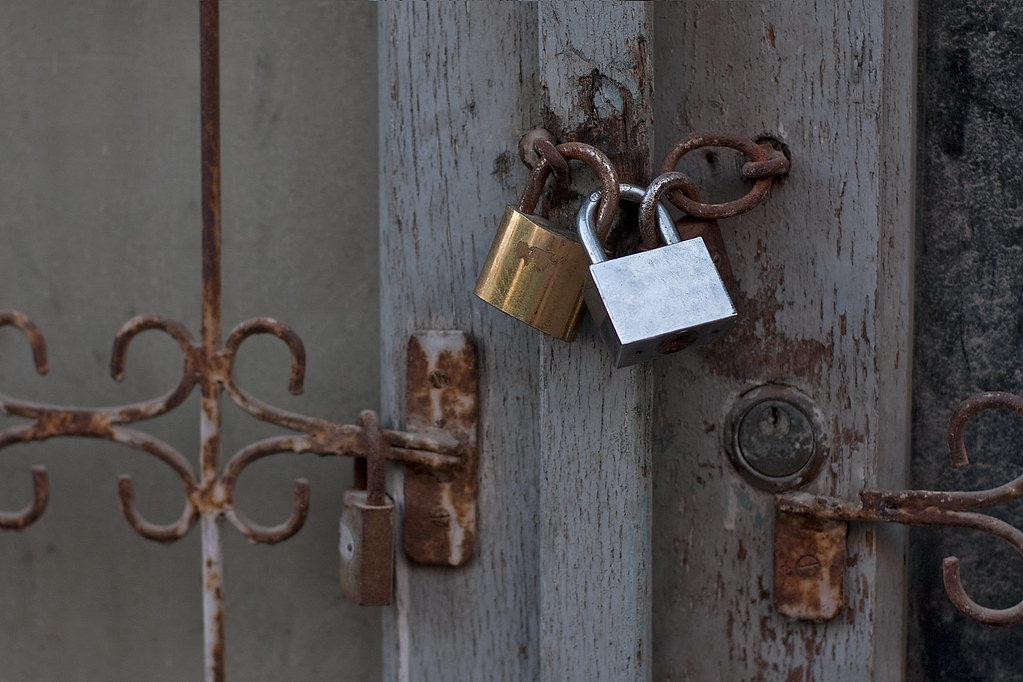
Featured image: Photo: “Couple of metallic padlocks on old door frame” by Horia Varlan, CC BY 2.0, via Openverse — source
Was this article helpful?

adminVerified expert
Cybersecurity Analyst — 20 years experience
Federal Capital Territory (Abuja)
Credentials: MCPN, MNCS, IAENG | System Analyst · Web Developer · CEH · CC · CDST
Got expertise to share? Write for us →