How to Turn On Microsoft 365 Security Defaults, Step by Step
Security defaults give small businesses free, Microsoft-managed protection: MFA for everyone, extra checks for admins and old sign-in methods blocked. Here is how to switch them on safely.

In this article
- Key takeaways
- What security defaults actually do
- MFA registration for everyone
- MFA every time for administrators
- MFA when needed for everyone else
- Old sign-in methods blocked
- Protection for admin portals
- Before you start: prerequisites
- Step-by-step: turn on security defaults
- Optional: make everyone register now
- Help users register MFA
- Troubleshooting
- A scanner or app can no longer send email
- An old Outlook version keeps asking for a password
- A user lost their phone
- Do not switch off verification methods
- Directory sync accounts
- When to move beyond security defaults
- Checklist
- Sources
If your business uses Microsoft 365 for email and files but has never set up sign-in protection, this guide is for you. Security defaults is a free, built-in switch in Microsoft Entra ID (the identity service behind Microsoft 365) that turns on a sensible set of protections in one go. It suits small businesses without a dedicated security team, and it takes about ten minutes to enable.
Key takeaways
- Security defaults cost nothing and need no extra licence.
- They require every user to register for multi-factor authentication (MFA), always require MFA for administrators, and block old sign-in methods attackers abuse.
- Microsoft says MFA and blocking legacy authentication stop more than 99.9% of common identity attacks such as password spraying and phishing.
- If you already use Conditional Access policies (Entra ID P1 or P2), use those instead; you cannot run both.

What security defaults actually do
MFA registration for everyone
All users must register for MFA. Since July 2024 there is no 14-day grace period: users register the first time they sign in after you switch the feature on.
MFA every time for administrators
People with powerful roles, including Global Administrator, Exchange Administrator, SharePoint Administrator, User Administrator, Billing Administrator, Helpdesk Administrator and Security Administrator, must complete MFA on every sign-in.
MFA when needed for everyone else
Ordinary users are prompted when Microsoft judges it necessary, based on factors such as location, device and the task being performed. The Authenticator app shows a number to type in, which helps stop “MFA fatigue” attacks where criminals spam approval requests.
Old sign-in methods blocked
Legacy authentication, used by very old Office versions and by basic IMAP, SMTP and POP3 connections, is blocked because it cannot do MFA. Device code sign-in, which phishers abuse by tricking people into typing a code on another device, is also blocked.
Protection for admin portals
MFA is required to use the Azure portal, Microsoft Entra admin center, Azure PowerShell and Azure CLI.
Before you start: prerequisites
- An admin account with at least the Conditional Access Administrator role. The person who created the tenant is usually a Global Administrator.
- A list of devices and apps that sign in to email, such as old printers or scanners that send email, accounting tools, or very old Outlook versions. These may stop working once legacy authentication is blocked.
- Two emergency “break-glass” admin accounts. Microsoft recommends two cloud-only accounts with permanent Global Administrator rights, not tied to a single person, used only if normal admins are locked out. Store their details securely.
- A short message to staff telling them they will be asked to set up the Microsoft Authenticator app at their next sign-in, and that IT will never ask them for the codes.
Step-by-step: turn on security defaults
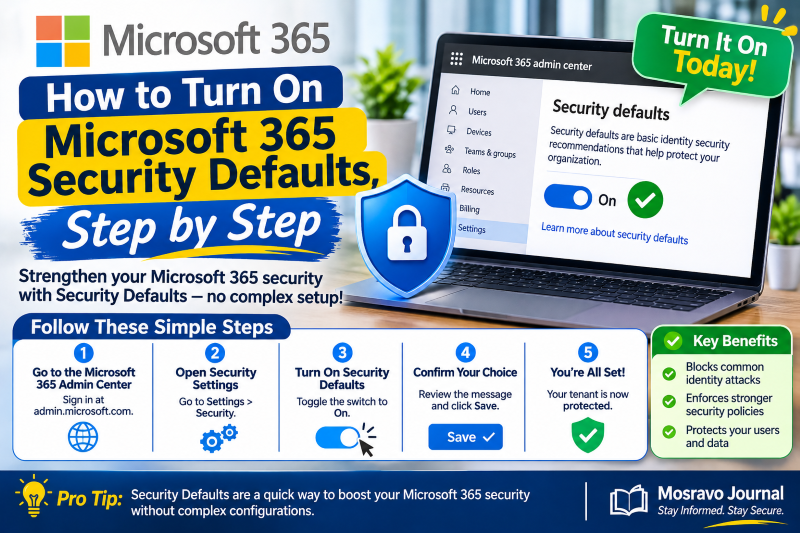
- Sign in to the Microsoft Entra admin center at entra.microsoft.com with your admin account.
- Go to Entra ID > Overview > Properties.
- Select Manage security defaults.
- Set Security defaults to Enabled.
- Select Save.
If the option is greyed out or warns you about existing policies, your organisation probably already uses Conditional Access. In that case, leave security defaults off and check that your policies cover MFA and legacy authentication instead.
Optional: make everyone register now
Microsoft recommends revoking existing sign-in sessions after enabling security defaults, so all users are prompted to register straight away. Your IT person can do this with the Revoke-MgUserSignInSession command in Microsoft Graph PowerShell. This signs everyone out, so do it at a quiet time and warn staff first.
Help users register MFA
- Ask each user to install Microsoft Authenticator on their phone.
- At their next sign-in, they follow the prompts, or go to myprofile.microsoft.com and choose Security info.
- They add Authenticator using notifications. After that they can also use the app’s verification codes. Other authenticator apps that support OATH TOTP codes also work.
- Test by signing out and back in on a second device.
Tip for teams with shared mailboxes or staff who share a phone: give each person their own account and their own authenticator. Shared logins undermine MFA.
Troubleshooting
A scanner or app can no longer send email
It is probably using basic SMTP authentication, which security defaults block. Check whether the device supports modern authentication or an alternative sending method, and update or replace it rather than switching protection off.
An old Outlook version keeps asking for a password
Very old Office versions do not support modern authentication. Update to a supported version of Microsoft 365 Apps.
A user lost their phone
An administrator can require the user to re-register MFA from the user’s authentication methods page in the Entra admin center, after confirming the person’s identity in person or by a known phone number.
Do not switch off verification methods
Microsoft warns against disabling any methods under the MFA service settings when using security defaults, as this can lock people out.
Directory sync accounts
If you use Microsoft Entra Connect or Cloud Sync, the synchronisation accounts are automatically excluded and do not need MFA.
When to move beyond security defaults
Security defaults are all-or-nothing: you cannot exclude a user or tweak the rules. Once your business buys licences that include Microsoft Entra ID P1 (for example Microsoft 365 Business Premium), you can switch to Conditional Access for finer control. Microsoft advises turning on Conditional Access policies immediately after disabling security defaults so you are never left unprotected.
Checklist
- Two break-glass admin accounts created and stored securely.
- Devices and apps using old email sign-in identified.
- Staff told what to expect.
- Security defaults set to Enabled and saved.
- Every user registered in Microsoft Authenticator.
- Admins tested sign-in to the admin portals with MFA.
- Lost-phone procedure written down.
Ten minutes in the admin center now can save your business from the most common account takeovers, which often start with nothing more than a stolen password.
Sources
- Microsoft Learn: Security defaults in Microsoft Entra ID
- Microsoft Learn: Turn on multifactor authentication in Microsoft 365 Business Premium
Featured image: Photo: “CryptoCard two factor” by Brian Ronald, CC BY-SA 4.0, via Openverse — source
Was this article helpful?

adminVerified expert
Cybersecurity Analyst
Federal Capital Territory (Abuja)
Credentials: MCPN, MNCS, IAENG | System Analyst · Web Developer · CEH · CC · CDST
Got expertise to share? Write for us →