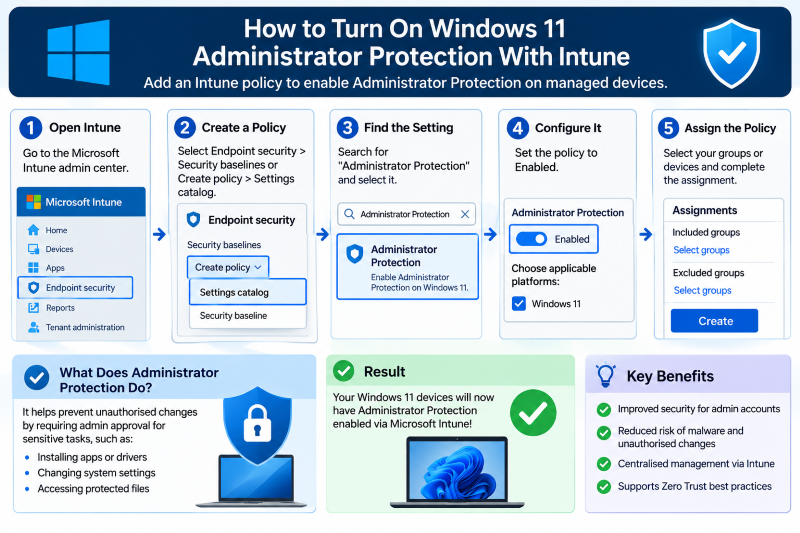
How to Turn On Windows 11 Administrator Protection With Intune
Windows 11 administrator protection lets admins work as standard users and approve each admin task with Windows Hello. Here is how to enable it with Intune, test it and fix common issues.

In this article
- What administrator protection does
- Before you start
- Requirements
- Where not to turn it on (yet)
- Step-by-step: turn it on with Intune
- Organisations using security baselines
- Single PCs without Intune
- Test before you roll out widely
- Troubleshooting
- Non-admin users cannot connect by Remote Desktop
- App updates fail
- Remote admin access
- Auditing approvals
- Checklist
- Sources
Many small offices still give staff full administrator rights on their Windows PCs because it is easier than calling IT every time someone installs a printer driver. Attackers love that. Malware that lands on an admin account can quietly install itself, turn off security tools and spread. Windows 11’s administrator protection feature narrows that risk without taking admin rights away. This guide is for IT administrators and small business owners who manage Windows 11 PCs with Microsoft Intune, with notes for single PCs.
What administrator protection does
With administrator protection turned on, people who are local administrators work as standard users by default. When a task really needs admin rights, such as installing software, Windows asks the user to confirm with Windows Hello (PIN, fingerprint or face). It then creates a temporary admin token from a hidden, separate system account, gives it only to that one task, and destroys it when the task ends.
According to Microsoft’s documentation, this differs from the familiar User Account Control (UAC) prompt in several ways:
- No silent auto-elevation. Every admin action needs the user’s explicit approval.
- A separate admin identity. Elevated tasks run in a separate profile, which is designed to stop malware running in the user’s normal session from hijacking them.
- Short-lived rights. Admin rights last only as long as the task.
At Microsoft Ignite on 17 November 2026, Microsoft announced that Windows administrator protection is generally available.
Before you start
Requirements
- Windows 11 version 24H2 or 25H2 with update KB5120998 or later. Microsoft lists Home, Pro, Enterprise and Education editions.
- Windows Hello set up for users who will need to approve admin tasks.
- For managed rollout: a Microsoft Intune licence and the devices enrolled in Intune.
Where not to turn it on (yet)
Microsoft says not to enable it on:
- Windows 365 Cloud PCs or Azure Virtual Desktop session hosts
- Devices that need Hyper-V
- Devices managed with LAPS (Local Administrator Password Solution)
- Environments that use roaming profiles or backup admin accounts
Windows Server is also not supported for now.
Step-by-step: turn it on with Intune
- Sign in to the Microsoft Intune admin center.
- Go to Devices > Configuration > Create > New policy.
- Set Platform to Windows 10 and later and Profile type to Settings catalog, then select Create.
- On the Basics page, give the policy a clear name, for example “Admin protection – pilot”.
- On Configuration settings, select Add settings and browse to the Local Policies Security Options category.
- Add User Account Control Type Of Admin Approval Mode and set it to Admin Approval Mode with Administrator protection.
- Add User Account Control Behavior Of the Elevation Prompt for Administrator Protection and choose the prompt type, for example Prompt for credentials on the secure desktop.
- On Assignments, assign the policy to a small pilot security group first, not all devices.
- Select Review + create, then Create.
- Restart the pilot devices. Microsoft states a reboot is required for the feature to take effect.
Setting names in the Intune catalog can change slightly over time, so search the picker for “Administrator protection” if you cannot find them under the exact names above.
Organisations using security baselines
Microsoft says that, with the October 2026 Windows security update, the feature is enabled by default for organisations that apply the Windows security baselines for 26H2, 25H2 and 24H2. If you use those baselines, check whether it is already active before creating a separate policy.
Single PCs without Intune
Microsoft’s documentation also lists a Windows Security settings option, marked as preview, for enabling the feature on individual devices. Open the Windows Security app and look for Administrator protection; if your build does not show it yet, wait for a later update rather than using unofficial tweaks.
Test before you roll out widely
Ask your pilot users to do their normal work for a week, including installing an approved app and connecting a printer. Microsoft lists these known issues to watch for:
- Apps that share files across user profiles may not work as expected.
- Settings do not carry over between the normal and elevated profiles.
- Elevated apps may not see network drives. Copy installers to the local disk before running them, or install in the user’s context.
- Single sign-on credentials from the normal session are not available to elevated apps, so users may need to sign in again.
- WSL or Visual Studio environments used in elevated tasks must be set up again in the elevated profile.
- Some issues, such as missing Start menu icons and unexpected prompts from apps using Edge extensions, are fixed in KB5124010, so keep devices updated.
Troubleshooting
Non-admin users cannot connect by Remote Desktop
Microsoft reports that after KB5124010, non-admin RDP logons can fail with error 0xC000000D. Its workaround is to reset the User Account Control Type of Admin Approval Mode policy through Intune or Group Policy.
App updates fail
Try downloading the update and running the installer as an elevated task. If that still fails, Microsoft suggests temporarily turning the feature off for that device.
Remote admin access
By default, domain users in the local Administrators group sign in remotely without elevation. Two policies control this, both named “User Account Control: Allow remote logon with elevated privileges…” One applies to all such domain users, the other only to specified users and groups. Use the narrower one if you need it.
Auditing approvals
Elevation events are logged through the Microsoft-Windows-LUA event provider: event 15031 for approved and 15032 for denied, failed or timed-out requests.
Checklist
- Devices on Windows 11 24H2/25H2 with KB5120998 or later
- Windows Hello set up for admin users
- Excluded Cloud PCs, AVD hosts, Hyper-V, LAPS and roaming-profile devices
- Pilot group policy created and devices restarted
- Known issues tested, KB5124010 installed
- Staff told what the new Windows Hello prompt means and never to approve one they did not trigger
- Rollout widened in stages
Administrator protection will not stop every attack, but it removes one of the easiest wins for malware on small business PCs: an always-on admin account.
Sources
- Microsoft Learn: Administrator protection
- Windows Experience Blog: Microsoft Ignite 2026, Building Windows for the next era of work
- Anoop C Nair: Administrator Protection in Windows 11 using Intune
Featured image: Photo: “My Desk 2016” by saebaryo, CC BY-ND 2.0, via Openverse — source
Was this article helpful?

adminVerified expert
Cybersecurity Analyst
Federal Capital Territory (Abuja)
Credentials: MCPN, MNCS, IAENG | System Analyst · Web Developer · CEH · CC · CDST
Got expertise to share? Write for us →